Subscribe to RSS Subscribe to Comments
Follow us on Twitter!

How to Disable Annoying Adobe Automatic Updates – Flash and Acrobat

I don’t know how many times I have been presented with the stupid adobe flash update software when rebooting computers at home, at work, at family members’ houses. Adobe seems to have an update every couple days, in fact I dare say that I actually spend more time updating flash and adobe acrobat reader products more than I use them. This does not upset me because I don’t like getting up to date software, it is the fact that the update prompt doesn’t happen when I actually am initiating the program. There is a big difference from going to open a pdf file and getting an update recommendation prompt, and getting one right on windows startup. My beef with this usage scenario is the fact that it is incredibly easy for a malware program to emulate the adobe updater. If they release a popup or malware program that looks like the adobe updater, many people will just click it because it is normal to receive these update prompts essentially EVERY time the user reboots the computer. It is extremely excessive.

Anyways, rant ends there…. Here is how to disable automatic updates in flash. (keep in mind the method for doing this is EXTREMELY counterintuitive)

STEP 1
Here we go step one… Visit this website: http://www.macromedia.com/support/documentation/en/flashplayer/help/settings_manager05.html

Now deselect the “Notify me when an update to Adobe Flash Player is available.” as seen here:


Confused? Well adobe works with your browser when you visit this website in order to let you deselect the update notification. Done and Done…

On to disabling Adobe Reader Updates…,

STEP 1: Open Adobe Reader, Click Edit then Preferences.

STEP 2: Now Click on the Updater Section and choose “Do not download or install updates automatically”

Now you can sit back and laugh, because you don’t have to deal with Adobe’s Stupid updates anymore.

-P.S. if you still have adobe speed launch opening on startup, do yourself a favor and get rid of it. Follow my guide here : http://www.exoid.com/?p=72 and look for adobe speed launch somewhere in the startup settings and nuke it.

eXoid.com Technology Podcast Episode 2 – Future of Television, SteadyState, Apple vs Microsoft, Notebooks

techpodcast

Episode 2:
We are at it again, your end user source for all your technology info cravings. We discuss some usefull tips for your SSD, the future of television as we know it, Microsoft SteadyState, mixed with more discussion of Apple vs. Microsoft. And also a long history of our notebooks we have owned and what we liked about each of them. Show notes Below:

(1:15 – 5:30) eXoid Quick Tip
We give you some tips on optimizing windows OS for SSD
We also discuss a few apple iPhone tips.

(5:45 – 11:45) The new Samsung LED TVs

(12:00 – 20:45) Future of Television
Discusion ensues about Hulu Desktop, the future of advertising in television, and the DTV changeover that occurred.

(20:45 – 37:45) Microsoft Steadystate and another classic Apple vs Microsoft Debate.

(38:00 – End) Discussion about our long history with notebooks and our preferences in a mobile computer.

eXoid.com Technology Podcast

 
Download Here

Skype Tips and Tricks for the iPod Touch 2G / Iphone

Hello all,
I have recently posted a new video guide on how to setup your ipod touch (2G Required) to work with Skype, I will show you how to get your internal speaker to work on the iPod touch even when a microphone is plugged in. I have tested this with an iPod Touch 2G with a speakeasy thumbtack mic and also apple’s own microphone / headphone set I also show how to setup skype so it runs in the background. This involves using a program called “Backgrounder”. Take a look at the video for complete details. Also, I am not using the 3.0 Firmware in this video. You may need a jailbroken ipod to perform all of the tips and tricks in the video.
Take a look:

AutoVid 0.9b Automatic WMV Encoding

Introduction:
AutoVid is an automated WMV video encoder suitable for encoding high quality video from mkv and avi formats to wmv formats which are playable on the PC and also the XBOX 360.

autovid

AutoVid allows you to setup source and destination paths, and automatically encode the files that show up in the source path to a wmv file in the destination path. When teamed with automated torrent downloads, it is a powerful method of automatically download, encoding and placing videos or television shows into your media library that can be accessed by both computers and media center extenders.
It should also be noted that AutoVid is not a true program, it is a BATCH FILE SYSTEM, or collection of scripts and programs that facilitate encoding, the work is done by the programs used by AutoVid

Download the latest build (AutoVid_x64_OS.zip) by clicking here

Download the latest build (AutoVid_x86_OS.zip) by clicking here

For More information, read the AutoVid Instructions Here

Also visit the forum if you have questions: http://www.exoid.com/ephpbb3/viewtopic.php?f=16&t=2547&start=0&st=0&sk=t&sd=a

New Project: NES Computer – Stealth Edition

UPDATE:

Project completed! Here is the Youtube video of it in action:

You can still view the worklog(more pictures and guide to building NES PC!) here:
http://www.exoid.com/ephpbb3/viewtopic.php?f=18&t=1220

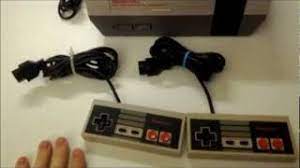
Here are two pictures of my next project:

nes2

Can you guess what I’m going to do with these goodies?
That’s right, I will be building a retro gaming computer using my favorite mini-itx board the D201GLY2, and my trusty companion that has been in the family for longer than most of my brothers and sisters. The goal with this build is going to be complete sleeper looks. What I mean by that is that the NES will be absolutely indistinguishable from a stock NES, completely stealth. I have seen a lot of NES’s built into computers on the web, but none have a completely stock look. In fact the majority look like frankenstein hack jobs. Hopefully mine will only look like that if you open the case. I have some original ideas that will make this build very unique and hopefully pretty gosh dang awesome.

If you want to see the worklog, please sign up and visit the forums by following this link:

http://www.exoid.com/ephpbb3/viewtopic.php?f=18&t=1220

The Marriage of Media Center and Netflix – MyNetflix v2.2 Review

Netflix has begun to offer streaming movies from their website. Thats right, instant movie gratification! Of course there is a limited selection, but there is actually lots of great content and even more recent movies and TV series available to watch.
I have come across an excellent program that lets you intergrate your Windows Media Center with your netflix account. Thats right you can now fully control your netflix account from your media center remote.

(Read the article)

D201GLY2 Heatsink Mod Posted

Keeping it fresh with the launch of our series of articles about the Intel D201GLY2, Here’s a useful heatsink Modification guide, Do you wan’t to lower the temperature of your D201GLY2 with an easy mod? Follow this simple guide to get lower temps on this little board.
Continue on to D201GLY2 – Heatsink Mod by clicking here.

Or discuss the D201GLY2 in our forums by clicking here.

(Read the article)

Cameron’s Quick Conversion Table

Having trouble keeping your kilobits and kilobytes straight? Don’t know that a 100mb LAN only transfers 12.5MB a second? Wan’t to know the true size of that 500GB hard-drive once formatted?

Try using my handy conversion table (xcel format). It will convert any computer measurement of space or speed into another. Check it out:

Conversion Table

To Download this handy tool, Click Here

Securely Mounting the Ultra 120 Extreme + P5B Deluxe Mods

Washer AddedThe Thermalright Ultra 120 Extreme has become very popular recently as the ultimate air cooler. Unfortunately the extreme is also becoming a bit notorious as having some quality control issues, mainly due to the new mounting procedure. Because there are more heatpipes, the clamp that holds the Ultra 120 Extreme to the CPU is a scissor design which can be opened and then closed.

I’ll show you how to mount this cooler securely, continue on to the article by continuing
(Read the article)

Finals Week. And a quick tip on getting rid of unwanted startup programs.

As many of you probably don’t know, I am a college student working my way through the business program. This website is first and foremost a hobby and a reflection of my interests. Secondly I hope it can become an excellent reference point for solving and learning about various technological topics, mainly computer systems. Unfortunately, all this must take a backburner to my real world activities, namely, finishing up Finals week! I hate to make excuses for a lack of updates, but this being a one-man project has to draw the line somewhere.
I pass my condolences onto you the reader, so let me give you a quick tip. Here goes:

Getting rid of unwanted programs on startup

I don’t know why it is that programmers have a fascination with writing programs to run programs. I can only imagine the sick kind of satisfaction programmers receive by knowing that some of there code is running on millions of users computers all the time, constantly, no matter if the program is needed or not. Realplayer, Itunes, adobe acrobat, quicktime, aol, realtek, everyone in the world insists on placing a program that adds a nifty little icon in your system tray till it boils over. Don’t worry though, most of these applications have a “hide tray icon” option! hooray!, oh wait, all that did was hide the icon while still running the program in the background? what is the point in this? Oh well, I will never know because I refuse to let these programs run on startup, wasting valuable system resources. Here is how you can too:

You can do the easiest way by hitting ‘Start – Run’ and then typing msconfig, which is a utility for controlling several system tasks, including startup options. But I prefer doing it the most effective way without pesky prompts and notifications later down the road. Here is the effective way to do it:

Step 1

Check your Start – Programs – Startup folder

startup
Any shortcut placed in this startup folder will be initialized upon startup. Delete anything you dont need from this folder by right clicking on the item and choosing delete. May I recommend deleting Adobe Speed Launch, Microsoft office launchers, and anything else you really dont need.

This is only half the battle. Now you need to clean out the registry. If you aren’t comfortable with editing registry settings you may want to read up on it before proceeding.

Step 2

Hit ‘Start – Run’ type “regedit” Navigate to HKLM>SOFTWARE>MICROSOFT>WINDOWS>CURRENT VERSION>RUN

registry
Now delete any registry entries in there that you do not need. After doing this, they will not boot on startup. I recommend disabling qttask.exe (Quicktime) ipodservice or ituneshelper (Itunes). If you don’t recognize the entries in this locations, then just google them. You will find the answer easily and can make a decision if you want it booting up or not. Be Smart.

Next Page »

eXoid.com - Tweak your life.